On this page
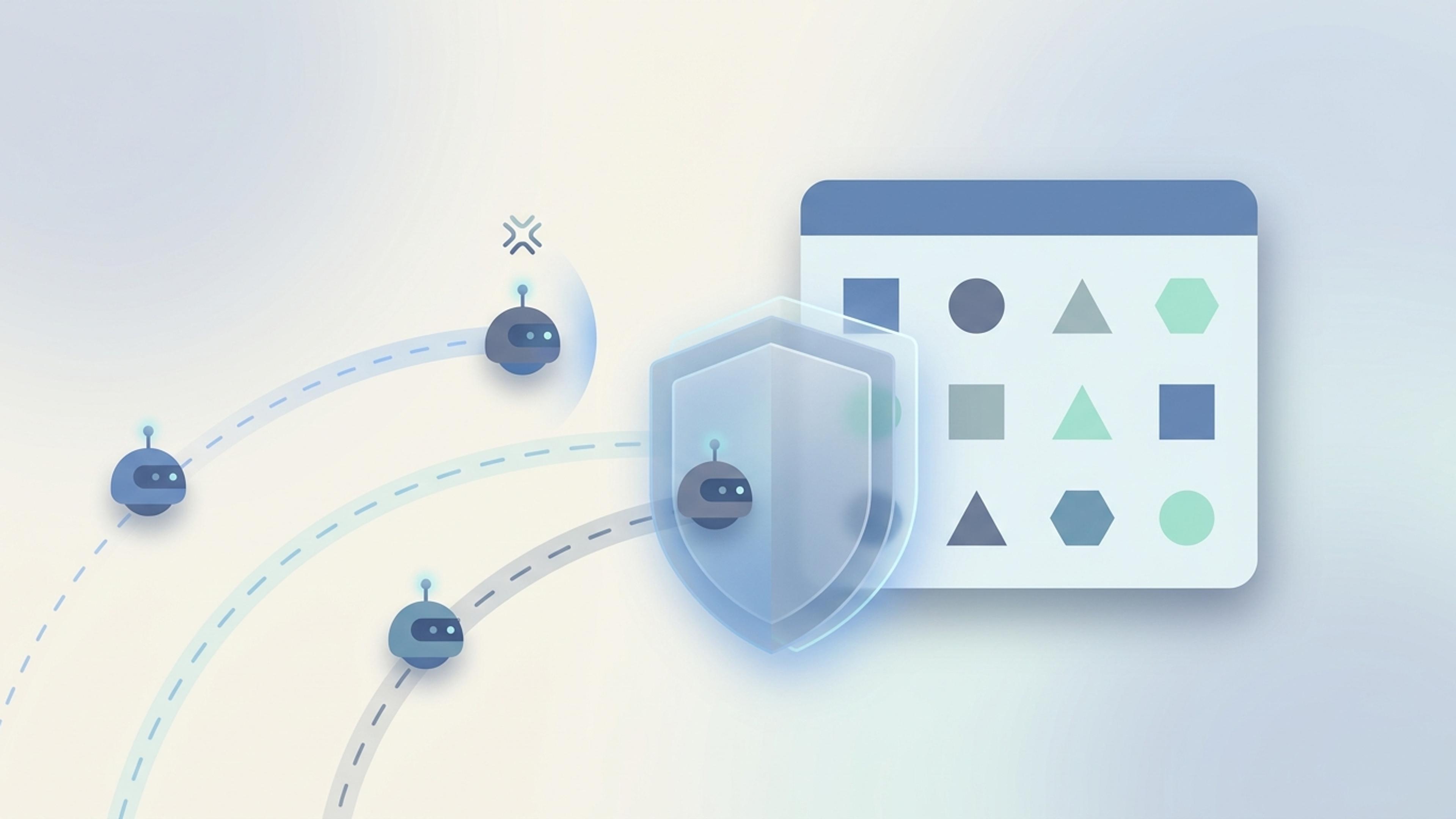
Cloudflare is a service that sits in front of many websites and filters their visitors. It can also turn away the programs AI assistants use to read web pages. One Shopify store owner found this out the hard way. In a Shopify Community thread, they explained that Cloudflare's settings had been blocking several AI crawlers from their store. A crawler is a program that visits web pages and copies them. After they unblocked them, they saw their store named as a source by Claude, another AI assistant, about two days later. They were careful to call that a sample size of one.
If your store's web address runs through Cloudflare, it's worth a few minutes to check. Here's how, step by step.
Most Shopify stores don't need to worry
Shopify runs its own stores through Cloudflare, but those settings are Shopify's, not yours. Cloudflare's settings only matter to you if you put your own Cloudflare account in front of your store. Cloudflare calls this setup Orange-to-Orange: visitors pass through your Cloudflare account first, then through Shopify's.
Stores often end up like this when the web address was bought or managed through Cloudflare, or when a developer set it up for speed or security. So the first job is to find out whether that's you.
Step 1: Find out if your store runs through your own Cloudflare
If you have a Cloudflare account, log in and look for your store's web address in the list of domains. If it isn't there, Cloudflare isn't in front of your store, and you can stop here.
If it is there, open it and go to the DNS records. Find the records for your store's address, usually the one called "www" and the main address. Each has a cloud icon:
- An orange cloud means visitors pass through Cloudflare, and its settings apply to your store.
- A grey cloud means Cloudflare only points visitors to Shopify. Cloudflare says traffic on a grey-cloud record doesn't go through its network, so its blocking settings don't touch your store.
If you don't know who manages your web address, ask whoever set up your store. A developer or agency can answer this in a minute.
Step 2: Check Cloudflare's AI settings
If your store's records have an orange cloud, look at the security settings for that domain. Cloudflare sorts AI programs into three groups:
- Search: programs that save your pages so an assistant can answer questions about them later.
- Agent: programs acting for a person in real time, like ChatGPT opening a link a shopper asked about.
- Training: programs that copy pages to train AI models.
For each group, you can allow it, block it, or block it only on pages that show ads. For a store that wants to be named in AI answers, Search and Agent are the ones that matter. If either is set to block, AI assistants may not be able to read your product pages.
Training is a choice that depends on how you feel about AI companies learning from your pages. Note one catch, though. Cloudflare says some programs do both search and training, and blocking training also blocks those programs. So blocking training can cost you more than you meant to give up.
Older Cloudflare accounts may also have a single switch called "Block AI bots". Cloudflare says that switch blocks programs that collect pages for AI training, plus some unverified programs that behave like them. It's being replaced by the three groups above.
Step 3: Check your own blocking rules
The AI settings aren't the only way to block a program. Cloudflare also lets you write your own rules, and some security settings challenge visitors that look automated. A rule written to stop spam or price-scraping bots can catch AI crawlers too.
If you didn't set these up yourself, ask the person who did whether any rule blocks AI programs or automated visitors in general.
Step 4: Look at what got through
Cloudflare has a tool called AI Crawl Control, available on every plan. It shows which AI services visit your site and how often, and lets you allow or block each one.
Look for the crawlers that matter for shopping answers, like OpenAI's OAI-SearchBot. If they visit your store rarely or never, something may be stopping them.
Step 5: Check your robots.txt file too
Cloudflare isn't the only place a block can hide. Your robots.txt file tells crawlers which pages they may read. Open yourstore.com/robots.txt and look for an AI crawler's name followed by "Disallow: /". Our guide on how to get your products recommended by ChatGPT explains which names to look for, and which ones you can safely block.
After you unblock
Don't expect AI answers to change the same day. Crawlers have to come back, read your product pages, and save them again. And reaching your store is only the start. Once AI assistants can read your product pages, what those product pages say decides whether you get named. Our AEO for Shopify guide walks through the product details that matter.
To see what an AI assistant can read on your product pages, try our free check.
What this doesn't settle
Cloudflare changes these settings often, and the menu names in your account may differ from the ones here. The store owner's two-day result is one store's experience, not a promise. And a store that AI can read still isn't guaranteed a spot in an AI answer. Unblocking removes one reason to pass you over. For the others, see why ChatGPT recommends your competitors, and not you.