AEO for Shopify: where your product data lives, and what to check
Updated October 19, 2026
AEO (answer engine optimization) is the work of getting your products named when a shopper asks an AI assistant what to buy. If you're new to the idea, start with What is ecommerce AEO?. This guide is the hands-on half. It goes through your Shopify admin one field at a time: where each field is, what AI assistants read from it, and what to check.
You don't need a developer for most of it. The few steps that touch your theme (your store's design template) say so.
Two ways AI reads your products
AI assistants learn about a Shopify product in two ways.
From your product page. Assistants with live search, like ChatGPT search and Perplexity, visit your product page and read it. They also read the hidden code on the product page that labels facts like price and size for computers. This code is called structured data.
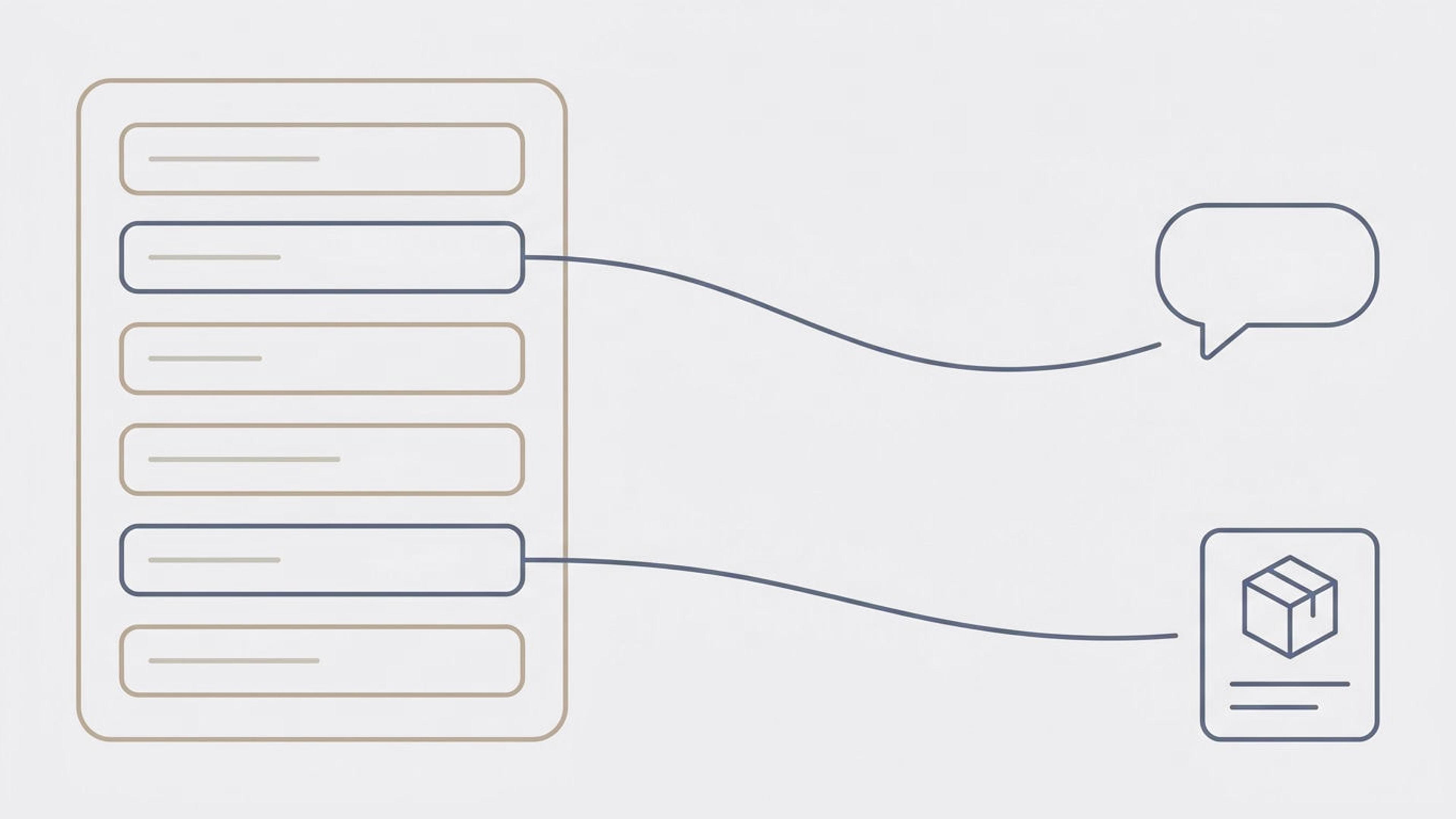
From Shopify itself. Shopify shares your products with AI shopping tools through Shopify Catalog. Shopify's documentation lists what an AI tool gets back. It includes the title, description and price, the sizes and colors, and whether each one is in stock. It also includes your tags and a link to your return policy. This comes straight from what you've saved in your Shopify admin, not from your product page.
The second way matters more than it sounds. Shopify said AI searches that used its catalog led to purchases at twice the rate of AI searches that copied data off web pages. We cover the source in AI shopping agents skip your homepage.
So every field below has two readers: the shopper on your product page, and the AI tool reading your Shopify data. A detail that only lives in a photo, or only in a theme section, reaches neither tool.
Product title
Where: Products → open a product → Title.
The title should say what the product is, in the words a shopper would use. "Insulated stainless steel water bottle, 32 oz" tells an assistant what it's looking at. "HX-32 Midnight" doesn't.
Check: read your titles out loud. Would a shopper who has never heard of your brand know what each product is?
Description
Where: Products → open a product → Description.
The description is where an assistant learns what the product is for, who it suits, what it's made of, and how it compares. Write it as answers to the questions your customers ask you, in your own words. You know your products better than anyone, so the facts should come from you, not from a template.
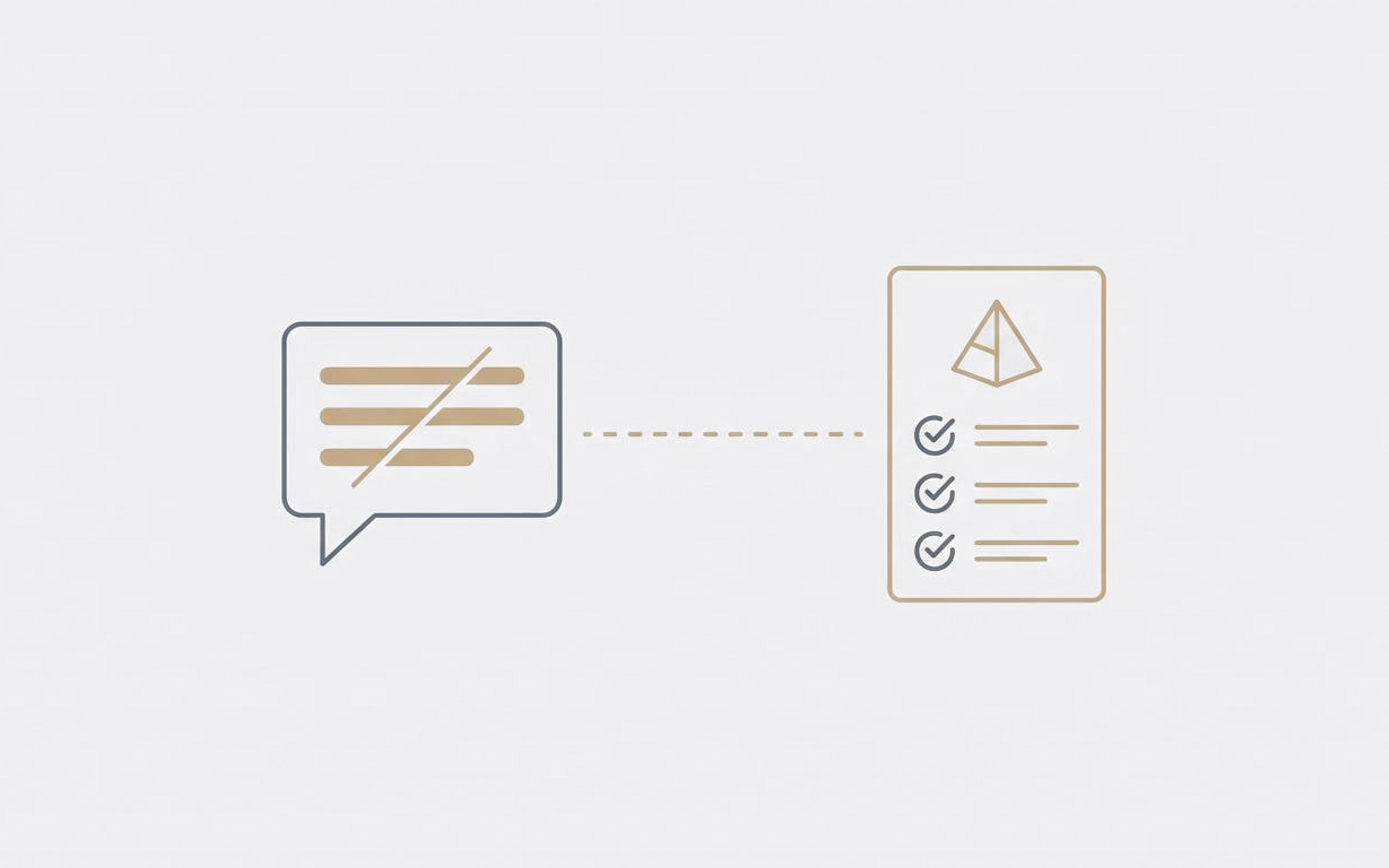
One trap is common on Shopify. Some stores put their product copy in theme sections or custom page templates instead of the Description field. The copy shows up on the product page, but the Description field is empty. Shopify Catalog and your structured data both read the Description field. So do your product feeds, the files listing your products that you send to shopping tools like Google. To all of them, the product has no description at all.
Check: open your five best sellers in the admin. Is the main copy in the Description field itself?
Category and category metafields
Where: Products → open a product → Category.
The category places your product in Shopify's standard list of product types, like "Water bottles" or "Desk lamps". Shopify says the category helps you sell on channels that need a standard product type, such as Google.
Picking a category also unlocks category metafields. Metafields are Shopify's custom fields for product details. Category metafields are the ones Shopify has already defined for that category, like material, color or fit. Shopify fills some of them in with its own guesses, so check them rather than assume they're right.
Check: does every product have the most specific category that fits? Are its category metafields filled in, and correct?
Product type, vendor and tags
Where: Products → open a product → Product organization.
- Type is your own label for the kind of product. Collections, filters and feeds use it.
- Vendor is the brand. Your structured data and feeds use it as the brand name.
- Tags are your own keywords. Shopify Catalog passes them to AI tools, so use words a shopper would recognize, not internal codes.
Check: no product should have a blank type or vendor.
Sizes and colors
Where: Products → open a product → Variants.
Shopify calls the sizes and colors of a product its variants. A water bottle sold in five colors should be one product with five color options, not five separate products. An assistant can then see the full range in one place, and can tell a shopper which sizes are in stock.
Check: look for near-duplicate products in your product list that should be one product with options. Check that stock numbers are up to date, because Shopify Catalog tells AI tools whether each size and color is available.
Barcodes and part numbers
Where: Products → open a product → open a variant → Barcode.
The barcode number (also called a GTIN, UPC or EAN) is how shopping tools tell that your listing is the same product they've seen elsewhere. If you make your own products and don't have barcodes, leave the field empty rather than making numbers up. Shopify also has standard fields for UPC and EAN numbers that apps and themes can read.
Check: if your products have barcodes on the box, are the numbers in Shopify?
Custom metafields for everything else
Where: Settings → Custom data → Products.
Some details shoppers ask about don't have a field yet: what the product works with, how it fits, how to care for it, what's in the box. You can add your own metafields for these. Each one becomes a labeled box on every product, so the detail is saved as a clear fact instead of being buried in a paragraph.
A metafield only appears on your product page if your theme shows it. In the theme editor (Online Store → Themes → Customize), most themes let you add a text block to the product section and connect it to a metafield. Assistants reading the product page can't see a metafield the product page doesn't show.
Check: list the five questions customers ask you most about each product type. Is each answer saved somewhere, and shown on the product page?
Images and alt text
Where: Products → open a product → click an image → Add alt text.
Alt text is a short written description of a photo. AI assistants can't see pictures the way people do, so alt text is how they learn what a photo shows. It also helps shoppers who use screen readers. Describe what's in the photo in a few words, like "Oak desk lamp with brass base, side view".
Check: open a few products. Does every image have alt text that describes that photo?
Shipping and returns
Where: Settings → Policies, plus a block on the product page.
Shoppers ask assistants "does it ship to Canada?" and "can I return it?". Assistants answer from your policies, and Shopify Catalog passes your return policy link to AI tools. Fill in your shipping and return policies in Settings → Policies.
Then say the short version on the product page too: the shipping cost or free-shipping threshold, the delivery time and the return window. Most themes have a text or collapsible-row block for this in the product section of the theme editor. A shopper who arrives from an assistant is close to buying, and shouldn't have to hunt through your footer.
Check: can you see shipping and returns on a product page without scrolling to the footer?
Reviews
Where: your review app's settings.
Reviews tell an assistant what buyers say about fit, quality and how the product holds up. Two things to check. First, many review apps load reviews with a script after the product page opens. Most AI tools that read web pages don't run scripts, so they never see those reviews. Look in your review app's settings for an option called something like "SEO" or "rich snippets" that puts reviews in the product page itself.
Second, Shopify has standard fields for a product's average rating and review count. Good review apps fill them in, which puts your rating in your Shopify data, not just on the product page.
Check: open a product page, view its source code (Ctrl+U on Windows, Cmd+Option+U on a Mac) and search for your review count. If it isn't there, AI tools reading the product page probably can't see it.
The hidden code your theme adds
Where: your theme's code, or an SEO app. This step is for a developer.
Your theme adds structured data, the hidden code that labels price, stock and reviews for computers. It has to agree with what the product page shows. A price in the hidden code that differs from the price on the product page makes it unclear which one is right, and an assistant may repeat the wrong one.
The usual problems are two copies of the code (one from the theme, one from an app) and code added by a script, which most AI tools don't see. Google's Rich Results Test shows what your product page's hidden code says. For the fields themselves, see Structured data for Shopify product pages.
Check: paste a product page link into the Rich Results Test. Is there one product result, with the right price?
Settings that can lock AI tools out
Where: your theme's robots.txt file, and your domain's security settings. This step is for a developer.
A robots.txt file tells visiting programs which pages they may read. Shopify's default one lets AI search tools in. A theme can replace it with a file called robots.txt.liquid, and a change there can block them by mistake.
If your domain runs through a security service like Cloudflare, check its AI bot settings too. Cloudflare has a setting that blocks AI programs, and it can block the AI search tools along with the ones that only collect data to train AI.
Check: open yourstore.com/robots.txt. Look for lines that name GPTBot, OAI-SearchBot, PerplexityBot or ClaudeBot followed by "Disallow: /". That means those tools are blocked.
Where to start
You don't have to fix every product at once. Start where it counts:
- Your best sellers, since they're what shoppers already ask about.
- The Description field, then category metafields, then shipping and returns on the product page.
- Reviews and the hidden code, with your developer.
- Robots.txt and security settings, once, for the whole store.
If you'd like to see what AI tools can read from your store before you start, run the free check.
What this doesn't settle
Filling in every field doesn't guarantee an assistant will name your product. Assistants also weigh reviews on other sites, forums, videos and "best of" lists, and each one decides differently. Shopify also fills in some catalog details with its own AI. Shopify's documentation says those details "might not always be present or have varying accuracy depending on available product data". What you can control is that your Shopify data is complete, accurate and in your own words. That's the part every assistant starts from.